 dnd-table
dnd-table user guide
dnd-table puts your D&D 5e (2024 rules) game on every screen at the table. The GM runs it from a laptop, players use their phones, and a TV shows the battle map to the room. Everything stays in sync live, and each screen sees only what it's allowed to.
- Getting started
- Finding your way around
- Playing a character
- Running the game (GM)
- The table display
- The knowledge base
- Reference
- Troubleshooting
Getting started#
1. Start the server#
One computer at the table (usually the GM's laptop) runs dnd-table; everyone else opens it in a web browser over the same Wi-Fi. See Running it in the README. When it starts it prints the addresses to open:
  Open on this computer:  http://localhost:3000
  Open on your network:   http://192.168.0.12:3000
Give players the network address. Nothing needs installing on their phones.
2. Create accounts and a campaign#
Everyone creates their own account (username, display name, password) on the sign-in page. If the server was started with a signup code, they'll also need that code from the GM.
The GM presses Create under Start a campaign: whoever creates a campaign is its GM. The campaign's invite code is in the GM's sidebar under Party → Invite players.
3. Join#
Players enter the invite code under Join a campaign on their home screen, then tap the campaign.
4. Connect the TV (optional)#
On the TV, projector or a spare laptop, open the server address and choose Use this device as a
table screen (or go straight to /table). It shows a short code. The GM enters it under
Party → Table displays. The screen stays paired after restarts; the GM can unpair it from the
same place.
Finding your way around#
The GM's screen#
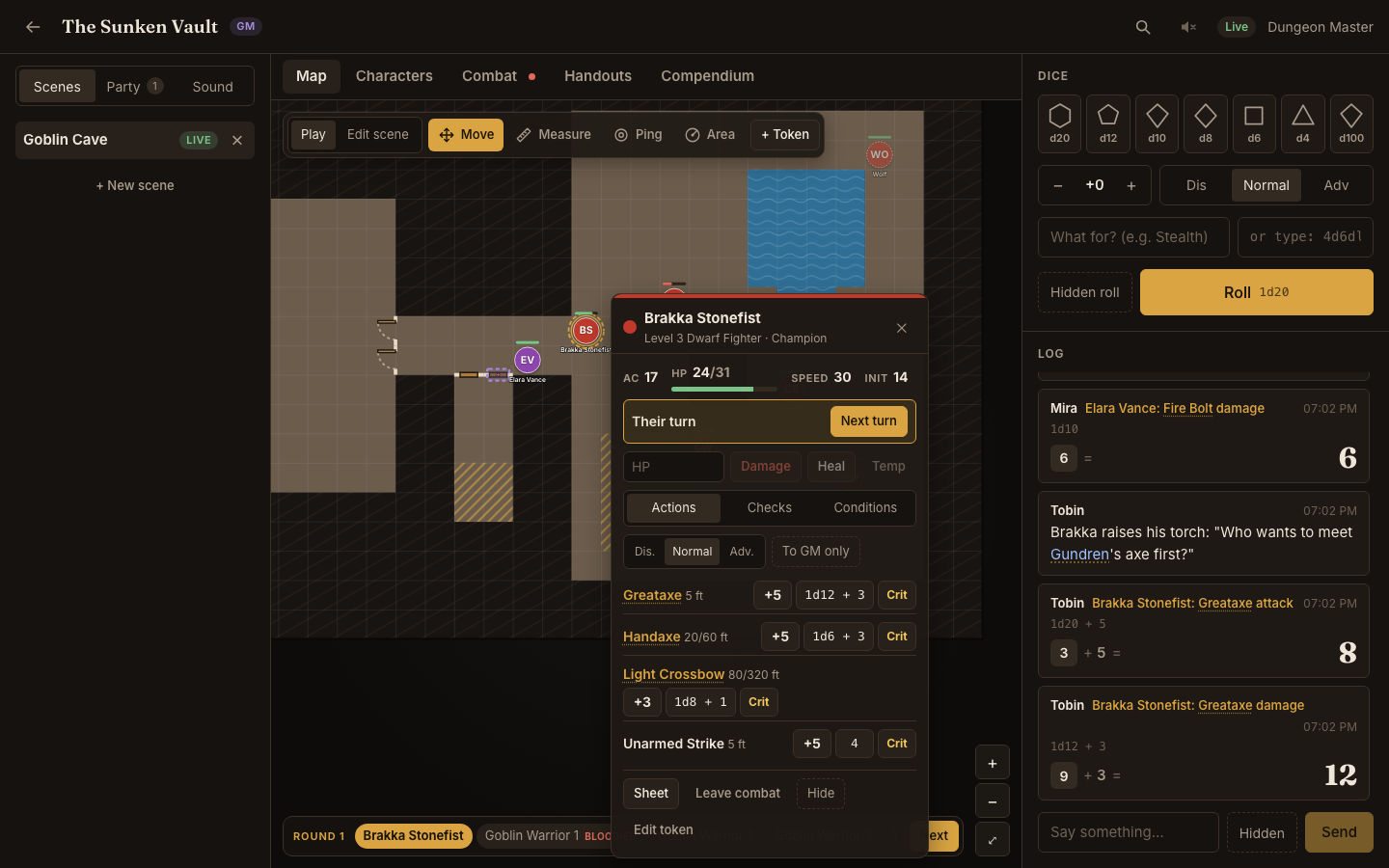
- Top bar: campaign name, knowledge base search (Ctrl/⌘ K), audio for this device, connection status.
- Left sidebar, in three tabs:
- Scenes: your maps. Show puts one in front of the players; Live marks the one they see.
- Party: who's online, the invite code and table displays.
- Sound: the soundboard. A green dot on the tab means something is playing.
- Centre: Map, Characters, Combat (a red dot while a fight is running), Handouts and Compendium (the knowledge base and campaign wiki).
- Right: the dice tray and the log (rolls, chat and whispers).
The map toolbar has two modes. Play holds what you use during a session: Move, Measure, Ping, Area, the fog brushes, + Token, the vision preview and Table follows me. Edit scene holds what you use to prepare a map: Wall, Door, Terrain and Erase, with the scene's settings in the sidebar. Press Done to go back to playing.
A player's phone#
The bottom bar switches between Map, Sheet (which also holds Combat, Handouts and the Compendium, under the switch at the top), Dice, Log and Party. A dot on Sheet means a new handout or wiki page is waiting. On a tablet or laptop, players get the same three-column layout as the GM.
Playing a character#
Creating a character#
Open Sheet and press Create a character. The creator walks through the 2024 rules in order: Class → Background → Species → Abilities → Details → Equipment → Review. Each step lists what still needs choosing, and every rules term links to its description, so you can read what a feat or feature does before picking it. Ability scores can be rolled, point-bought or taken from the standard array.
The character sheet#
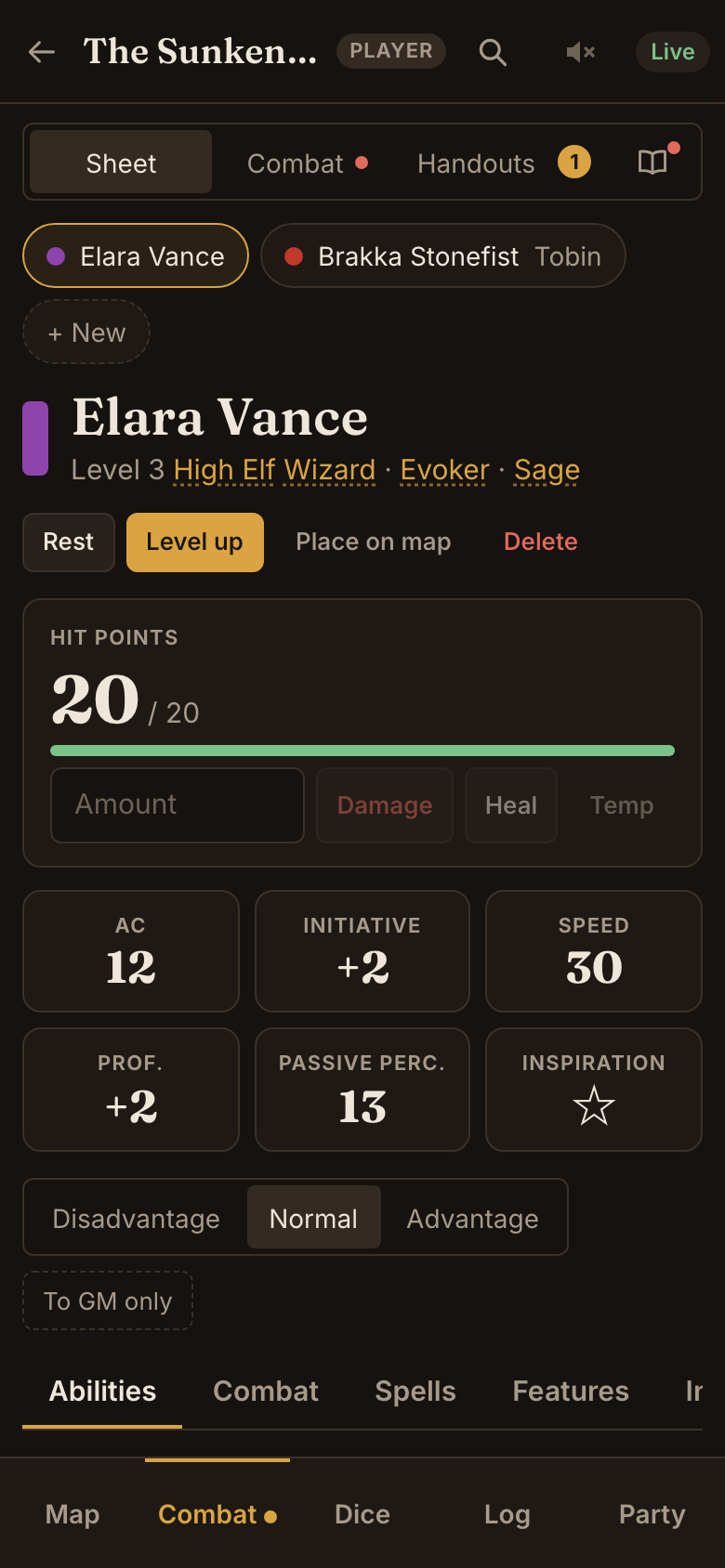
The sheet works everything out from your choices: AC, initiative, saves, skills, attacks, spell save DC and so on.
- Tap any bonus to roll it: ability checks, saves, skills, attacks, damage and initiative. Pick Advantage or Disadvantage first; it applies to the next roll only. To GM only makes your rolls secret.
- Hit points: type an amount, then Damage, Heal or Temp. Damage comes off temporary HP first; at 0 HP the Combat tab shows death saves.
- Conditions and exhaustion (Combat tab) change your rolls automatically, e.g. Poisoned gives Disadvantage on attacks and checks, and Paralyzed fails Strength and Dexterity saves.
- Spells: slots, prepared spells and a spell picker for your class list. Features tracks class resources (Rage, Second Wind, Channel Divinity…). Inventory holds equipment, items and money. Notes are visible only to you and the GM.
- Rest: a Short Rest spends Hit Dice; a Long Rest restores everything.
- Level up walks through hit points, a subclass, feats or Ability Score Improvements and any new choices.
- Place on map puts your token on the scene in play.
On the map#
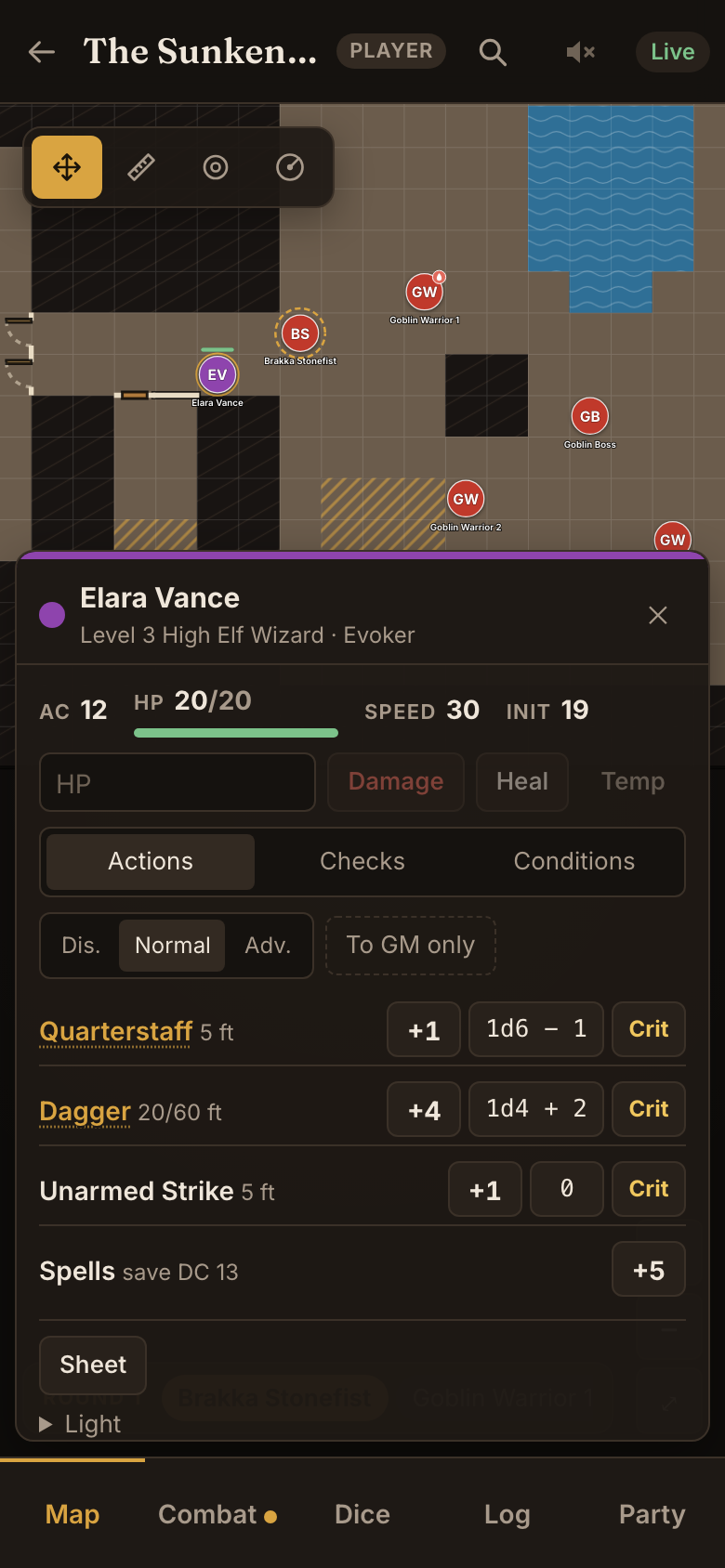
- Drag your token to move it. The label shows the distance, and the extra cost of difficult terrain ("30 ft (40 ft move)"). You can't move through walls, closed doors or solid rock.
- Tap your token for quick actions: hit points, conditions, your attacks and spell attack, checks and saves, ending your turn and your token's Light (light a torch, for instance). Tap another creature to see how hurt it looks and any conditions.
- Measure draws a ruler; Ping (or a double-tap) flashes a marker everyone sees; Area places spell templates (see Area templates).
- Drag empty map to pan; pinch or scroll to zoom.
- Click a door next to your token to open or close it, unless it's locked.
In combat#
The turn order runs along the bottom of the map. When it's your turn, your token is ringed and End turn appears there and in your token's quick actions. Roll initiative from the sheet's Initiative button or the tracker (or type in a physical roll); it goes straight into the order.
Handouts and the wiki#
Handouts the GM shares with you arrive in Handouts with a dot until you've read them. Wiki pages shared with you appear in Compendium → Campaign wiki, and their names turn into links wherever they're mentioned.
Sound#
The speaker button in the top bar turns the table's music and ambience on for your device (it's off by default on phones) and sets your own volume.
Running the game (GM)#
Preparing a scene#
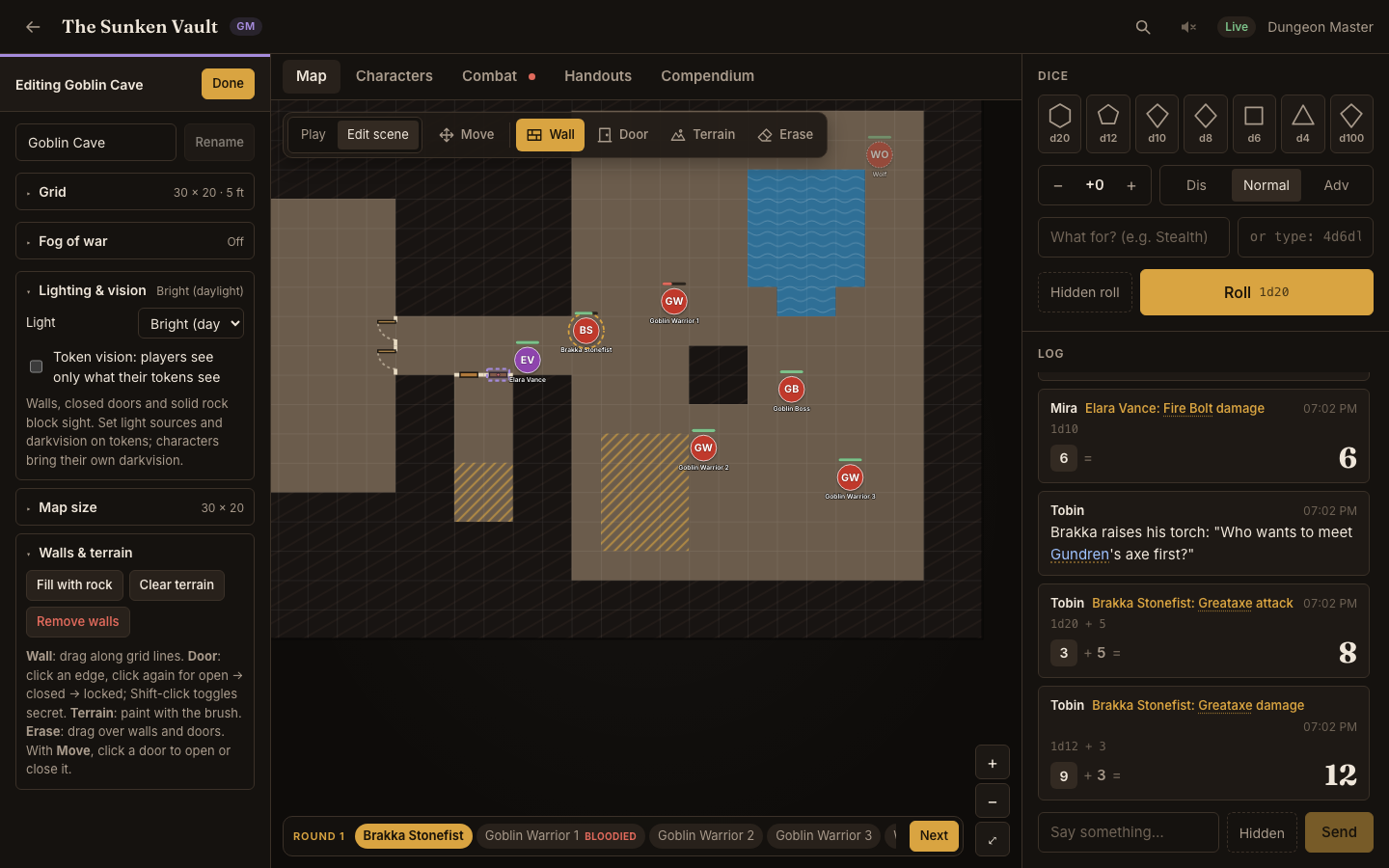
- Create a scene: Scenes → + New scene. Upload a map image (PNG, JPEG, WebP or GIF), or leave it empty for a blank grid. New scenes are private until you press Show.
- Switch to Edit scene in the map toolbar. The sidebar shows the scene's settings, each section with its current value on its summary line.
- Grid: for an image map, set Cells across to the number of squares printed across the map, then nudge Shift X/Y until the lines match. Feet per cell is 5 in the 2024 rules. You can hide the grid lines.
- Map size (blank maps): add or remove rows and columns on any side. Tokens, fog, walls and terrain stay where they are.
- Draw the map:
- Wall: drag along grid lines; a click places one edge.
- Door: click an edge to add a door, click again to cycle open → closed → locked. Shift-click (or the Secret door toggle) makes it secret: players and the TV see a plain wall until it's opened.
- Terrain: paint floor, solid rock (impassable), difficult terrain or water (both cost an extra 5 ft per square). On a blank map, Fill with rock under Walls & terrain, then carve rooms with Floor.
- Erase removes walls and doors. Clear terrain and Remove walls reset the whole map.
- Fog of war and Lighting & vision: see Fog, light and vision.
- Press Done, then Show (in the Scenes tab, or on the banner over the map) to put the scene in front of the players.
Tokens and quick actions#
- + Token adds a creature, a hidden creature, a party member's character token, or a plain token for a player without a character. Monsters added from the combat tracker can place their own tokens.
- Drag to move; the GM can move anything, anywhere.
- Click a token for its quick actions, right beside it:
- AC, hit points, speed and initiative, with Damage / Heal / Temp.
- Conditions: shown as chips (× removes one); the Conditions tab toggles any of them.
- Actions and Checks: a character's attacks, spell attack, checks, saves and skills from their sheet, or a monster's actions, checks and saves from its stat block. Monster rolls are hidden from players by default.
- Whose turn it is, with Next turn, and Roll for a missing initiative.
- Start combat / Add to combat / Leave combat, Hide and Stat block (or Sheet for a character).
- Edit token: name, colour, size, who controls it, hidden, light, darkvision, blindsight, truesight, and Remove token.
- Escape closes the card; Delete removes the selected token.
Secret names. Players can see what a creature is, not who it is. Until you reveal a creature's name, players and the TV see what it looks like instead, on the map, in the turn order and in anything posted to the log:
- Under Edit token, untick Players know this name and fill in Players see ("Innkeeper", "Hooded figure"). Left empty, players see "Unknown creature" with a "?" on the token.
- Reveal name on the token's card tells everyone; Hide name makes it secret again. On your map, secret names are in italics, and the card shows what players see.
- Creatures you add with + Token start with their name unknown. Monsters placed from the combat tracker, and tokens you name after a kind of creature ("Bandit 2"), show that name: anyone can see a goblin is a goblin. Party characters and player-controlled tokens always show their names.
Fog, light and vision#
Fog of war (Edit scene → Fog of war) hides unexplored areas from players. With fog on, the Play toolbar gains Reveal and Hide brushes (1×, 3× or 5× wide); Cover all and Reveal all reset it. Right-drag or two fingers still pan while painting.
Lighting & vision sets the scene's light: bright (daylight), dim (twilight, moonlight) or dark (night, dungeons). With Token vision on, each player sees only what their own tokens see, and table screens show what the whole party sees.
- Walls, closed doors and solid rock block sight. Creatures out of sight never reach players' devices.
- Give tokens light sources (candle, torch, lamp, hooded lantern, light spells or custom) and senses under Edit token. Character tokens take darkvision from the sheet; monsters placed from the combat tracker take theirs from the stat block, and Use … senses copies them onto older tokens.
- Light spells the caster carries (Light, Dancing Lights, Produce Flame, Flame Blade, Continual Flame, Daylight, Fire Shield, Sunbeam) have a Light token button in the sheet's spell list that lights the character's token on the map; Put out ends it.
- 2024 rules: dim light is lightly obscured, darkness heavily obscured. Darkvision sees dim light as bright and darkness as dim within its range; blindsight and truesight ignore light within theirs.
- Dynamic fog reveals whatever players see, so explored areas stay mapped (dimmed).
- You see everything, with light levels shaded and each light's reach outlined.
- Preview someone's view from the dropdown in the Play toolbar:
- As Mira (any player) shows the map exactly as that player's screen does: what their tokens see, their fog, secret doors as plain walls, and only the creatures they can see.
- Through Goblin Warrior 1 (any token) shows what one creature sees, e.g. whether the goblin by the door can see the rogue.
- A banner shows whose view you're in; GM view goes back.
Combat#
- Start a fight from Combat (Start with this map's tokens or Start empty) or from any token's quick actions. Add party members, map tokens or SRD monsters: search by name or type and filter by CR. Monsters can drop their own tokens on the map, hidden if you like, with average or rolled HP.
- Roll for creatures rolls initiative for every monster as a hidden roll. Players roll their own.
- Next turn walks the order and announces each round. Players can end their own turn.
- Apply damage, healing and conditions from the tracker or from token quick actions. A character's HP and conditions are the ones on their sheet, so everything stays in sync.
- The tracker's Stat block tab shows the selected monster with tap-to-roll attacks, and the encounter's 2024 difficulty against your party's XP budget.
Players and the TV see the turn order and whose turn it is, but never hidden creatures, and only Healthy / Bloodied / Down for creatures that aren't theirs.
Area templates#
- Pick Area, then a spell (its shape and size come from the SRD, e.g. Fireball is a 20-foot-radius Sphere) or any shape and size: Cone, Cube, Cylinder, Emanation, Line or Sphere.
- Press where the area starts and drag to aim. Caught creatures are ringed and counted. A square counts when the area covers at least half of it. An Emanation pressed on your token follows it.
- Select a template (with Move) to drag it, turn it by its handle, resize or remove it, or post who's caught to the log for saving throws.
- Templates disappear when the turn passes unless you tick Keep. The GM can hide templates or clear them all.
Handouts#
- Handouts → New handout: a title, an optional image and text. Preview shows it as players will.
- Share it with Everyone or Some players, or keep it a Draft. Players get a notice when one arrives; changing a shared handout marks it unread again.
- Show on table puts it full-screen on the TV (tick Also pop it up on players' screens to show everyone). You can also put up any image straight away. Back to map takes it down.
Campaign wiki#
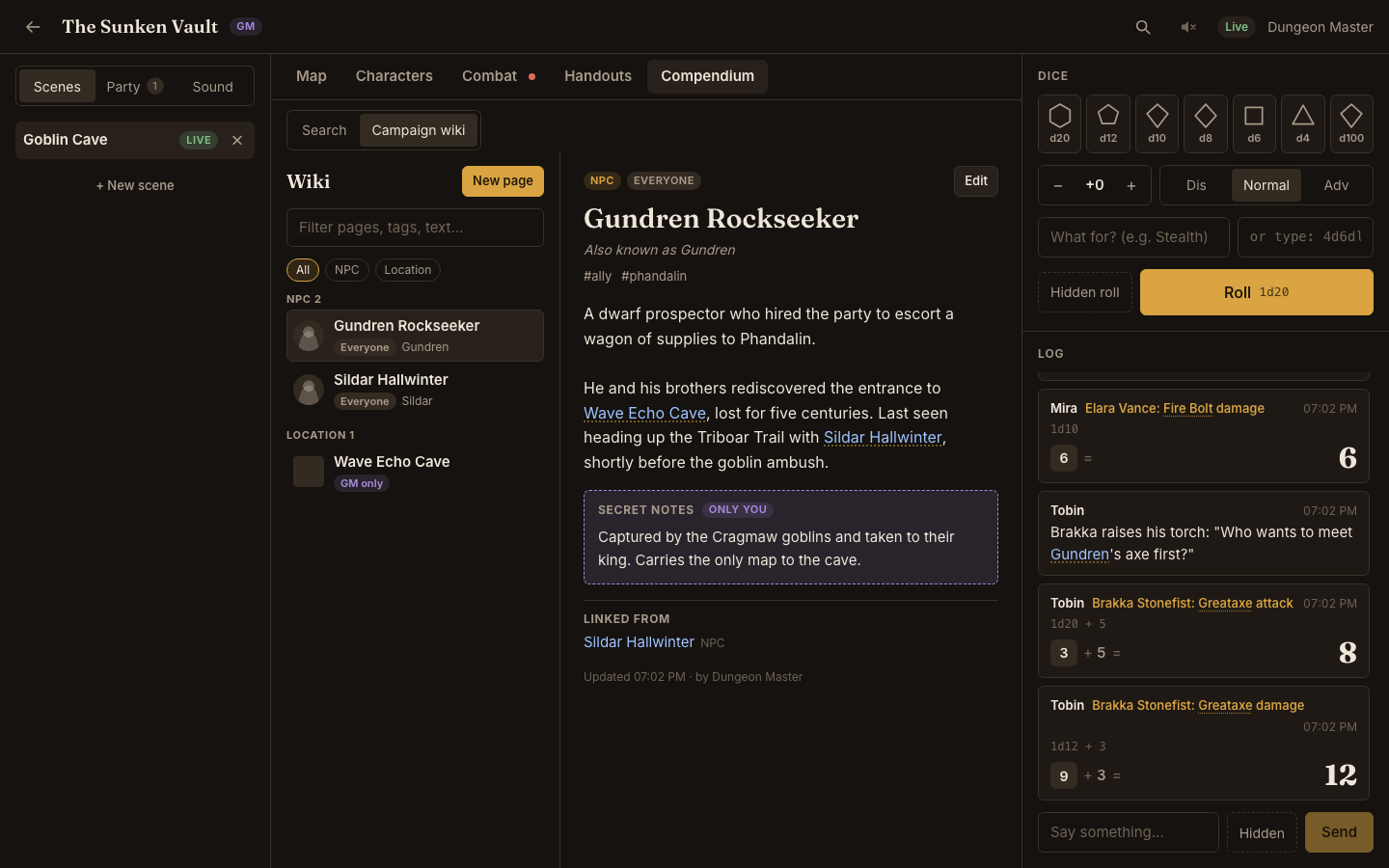
- Compendium → Campaign wiki → New page: a title, a category (NPC, Location, Faction, Item, Lore, Session, Other), other names, tags, an image and text.
- Type
[[to link another page, a spell, a monster or a rule. Page titles and other names also link by themselves wherever they're written: handouts, chat, notes, other pages. - Choose who can read it: GM only, Everyone or Some players. Secret notes are never sent to players.
- Each page lists the pages that link to it. A link to a page that doesn't exist yet offers Create page.
Sound#
- Sound → Add track: upload MP3, OGG, WAV, M4A/AAC or FLAC (up to 50 MB). Choose Music (one at a time, crossfading), Ambience (layers that play together) or Effects (one-shots).
- Play, pause and stop tracks; mix with each track's slider and the master volume. Click a track's name to rename it or change its kind, loop and default volume.
- Table screens play the audio. Players opt in on their own devices. Someone joining mid-song hears it from the same point as everyone else.
The table display#
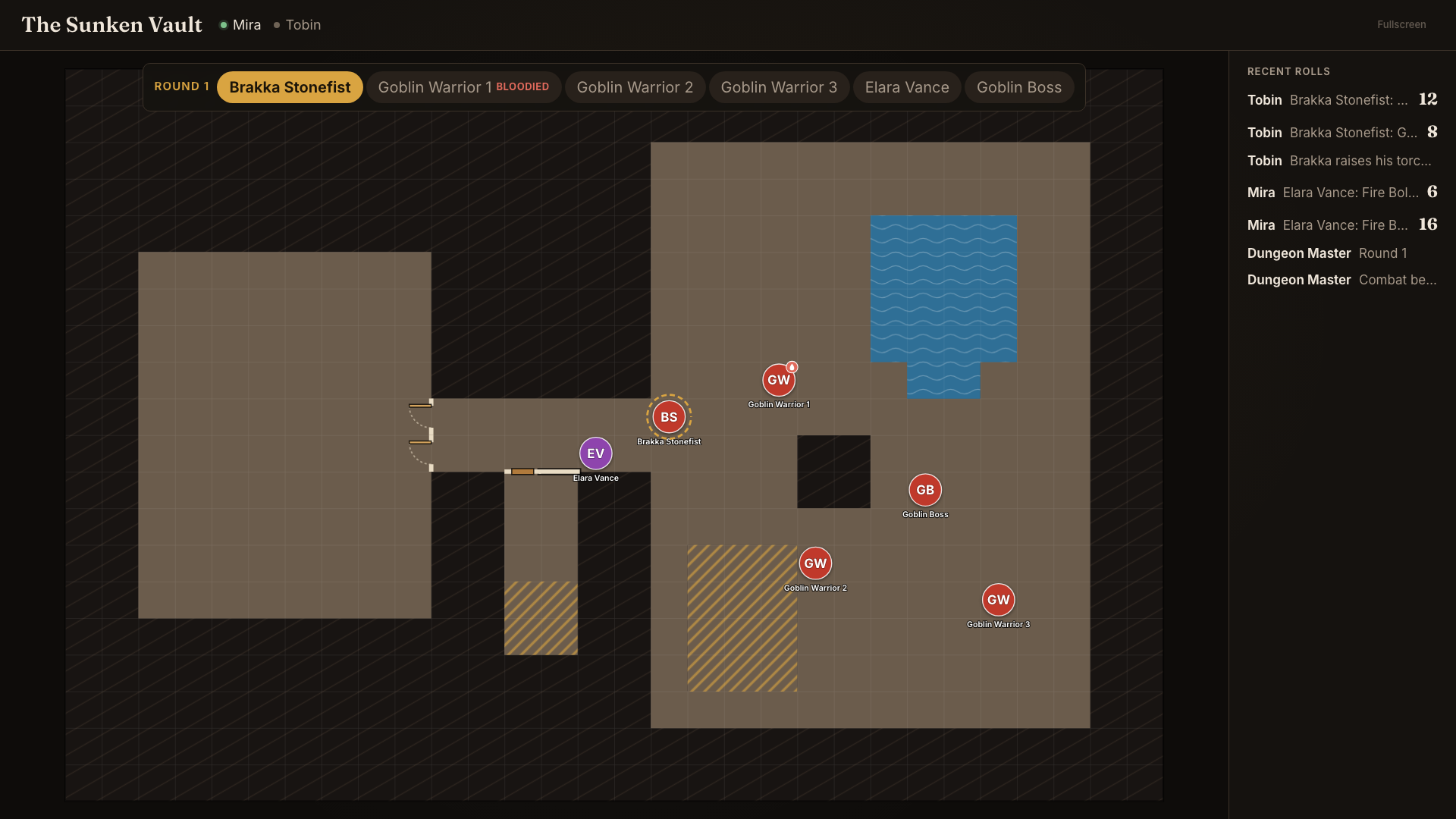
The TV needs no account. It shows the live scene with only what the party may see, the turn order, recent public rolls (a new roll is spotlighted for a moment) and any handout you show. Fullscreen is in its top-right corner.
- Table follows me (Play toolbar) makes the TV frame whatever you're looking at; otherwise it shows the whole map.
- Browsers only allow sound after an interaction, so the first time a TV needs a click or key press.
For a kiosk, start Chrome with
--autoplay-policy=no-user-gesture-required.
The knowledge base#
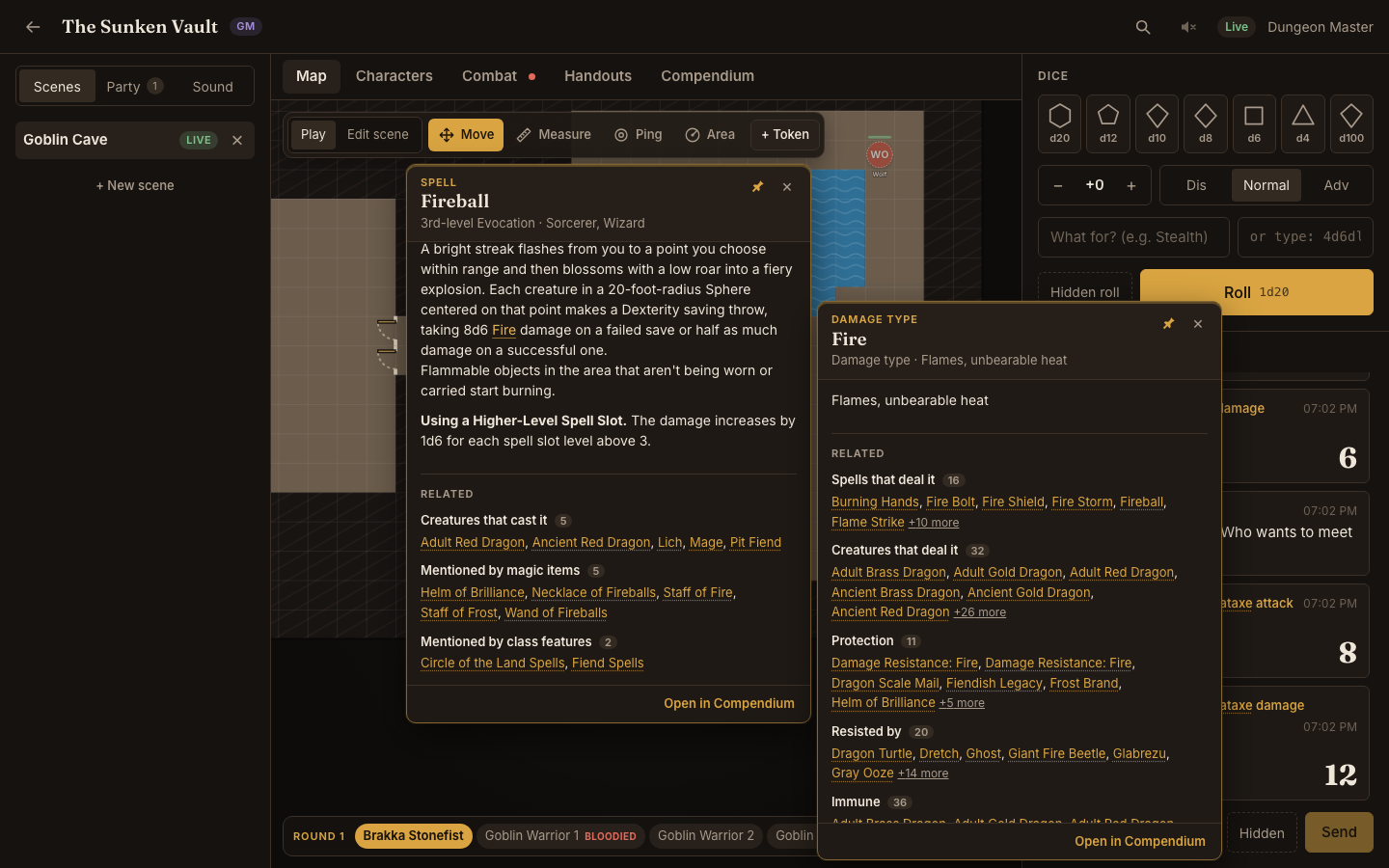
Every spell, monster, condition, item, class, feat, rule and campaign page is a link wherever it's mentioned: sheets, stat blocks, the tracker, the log, handouts and the wiki. The rules include the whole SRD glossary, so terms like Advantage, Cover, Difficult Terrain, Opportunity Attack or "the Dash action" open their rules. Each entry also lists related entries worked out from the SRD: which spells deal Fire damage, which creatures resist it, what protects against it, which weapons have a property, who casts a spell.
- Hover (mouse) to preview; click or Ctrl/⌘-click to pin. Links inside a popup open further popups beside it. On phones a tap opens a sheet.
- The pin in a popup's corner shows whether it stays open; click it to unpin, and the popup closes again once you move away.
- Drag a popup by its header to move it out of the way. It stays where you put it.
- Escape closes the top popup. Shift-click a link (or Open in Compendium) to open the entry in the Compendium, with search, filters and back/forward history.
- Ctrl/⌘ K opens quick search: arrow keys to choose, Enter pins, Shift+Enter opens in the Compendium.
- In chat, handouts and wiki pages, write
[[Name]]or[[spell:fireball|that spell]]to link explicitly.
Reference#
Dice#
Type expressions in the dice tray or pick dice and a modifier:
| You type | Means |
|---|---|
1d20+5 |
a d20 plus 5 |
2d20kh1+3 |
advantage: roll two d20, keep the highest, add 3 |
2d20kl1 |
disadvantage: keep the lowest |
4d6dl1 |
roll 4d6 and drop the lowest (ability scores) |
8d6 + 1d4 - 1 |
several terms |
d% |
percentile (1–100) |
Hidden roll sends a roll to the GM only. Natural 20s and 1s on a single d20 are highlighted.
Keyboard and mouse#
| Action | How |
|---|---|
| Quick search | Ctrl/⌘ K |
| Close a popup or token card | Escape |
| Remove the selected token (GM) | Delete or Backspace |
| Pan the map | drag empty map, right-drag, or two fingers |
| Zoom | scroll, pinch, or the + / − buttons |
| Ping | double-click the map, or the Ping tool |
| Toggle a secret door (editing) | Shift-click it with the Door tool |
Troubleshooting#
- Players can't open the address. They must be on the same network as the host. Use the
network address the server prints, not
localhost, and let Node.js through the host's firewall. - No sound on the TV. Click or press a key on it once (see The table display).
- A player can't see the map. Press Show on a scene; a scene you're preparing is private. With token vision on, players need a token that can see (light or darkvision) in a dark scene.
- Backing up. Everything lives in the
data/folder: one SQLite database plus uploaded images and audio. Copy that folder while the server is stopped.
Something unclear or out of date? Edit this page on GitHub.